

A whiteboard often becomes the centre of an office meeting. Teams use it to map ideas, explain processes and make decisions visible.
But choosing a whiteboard in office space is no longer simple. It is not just a stationery purchase.
Buyers must compare dry erase boards, smart displays and complete interactive training systems.
The right choice depends on what should happen during and after the session. Do you only need a writing surface? Or must you connect remote teams, record training and track learning?
Which Whiteboard in Office Spaces Should You Choose?
Start with the job the room must perform. Do not begin with screen size or a long feature list.
This approach prevents a common buying mistake. Companies often choose a device first. Later, they find it cannot support the real work.
What Does “Whiteboard in Office” Mean Today?
The phrase can describe three very different products. Understanding those differences makes vendor comparisons easier.
1. Traditional Dry Erase Whiteboard
A traditional board is affordable and simple. It works without electricity, software, or staff training.
It remains useful for informal discussions, daily targets, and quick planning. However, someone must photograph or rewrite everything before the board is erased.
It cannot bring remote staff into the talk. It also cannot record a session. Nor can it share content or test what staff learned.
2. Digital or Interactive Whiteboard
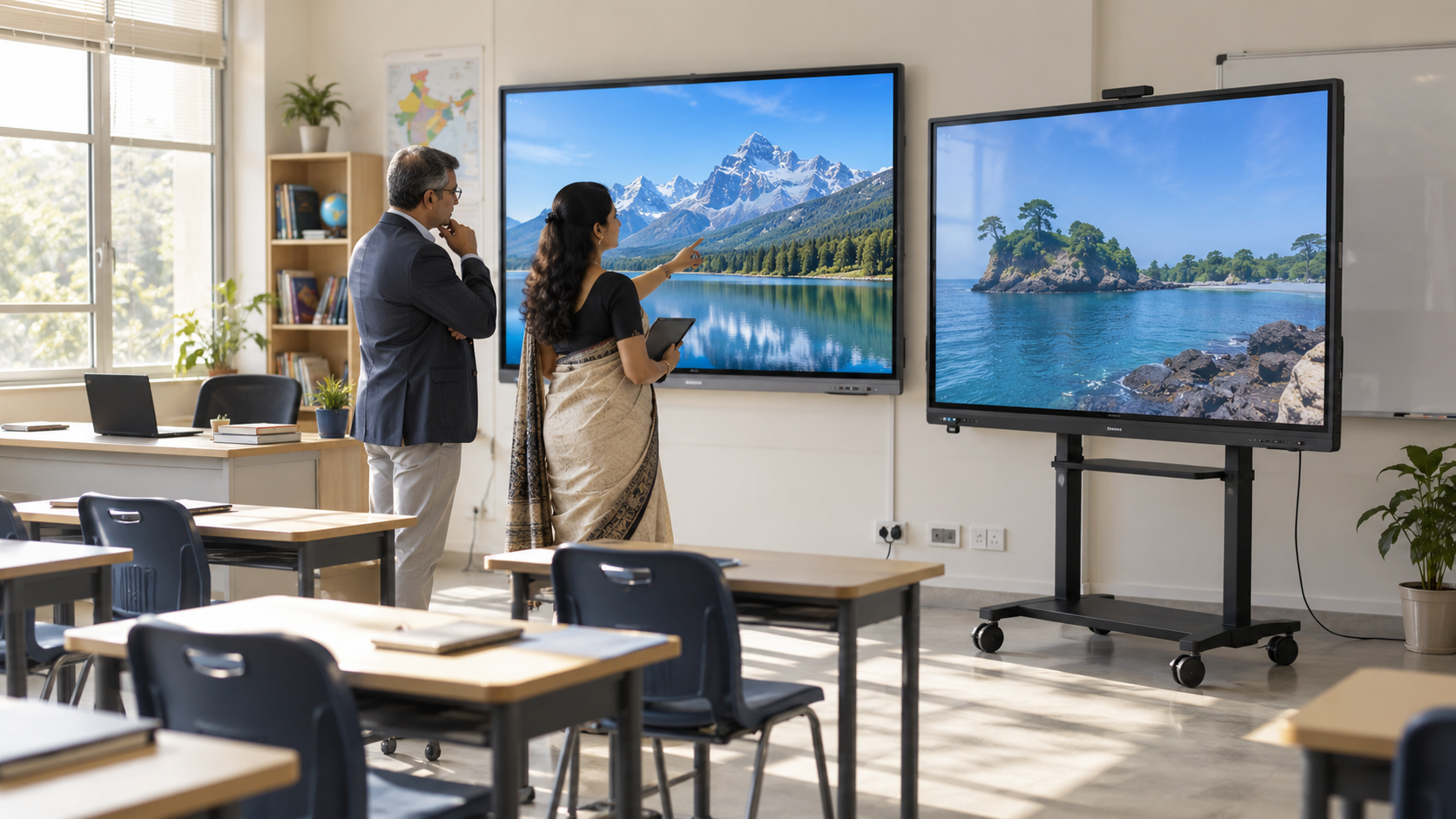
A digital whiteboard for office use lets teams write over slides and open media. It can also share screens and save notes. Many systems support video meetings.
This is a major gain for hybrid teamwork. Yet many products remain display devices. Recording, course delivery, tests, and reports may need separate hardware or software.
3. All-in-One Interactive Training System
An all-in-one system links the room with the wider learning process. It combines smart display, sound, video, recording, content access, and learner data.
This type of whiteboard in the office training room suits firms with year-round learning. Topics may include onboarding, compliance, products, processes or skills.
Traditional Whiteboard vs Smart Board vs All-in-One L&D System
The following comparison highlights how similar products can offer different levels of business value.
The comparison also changes how buyers should assess office whiteboard price. The cheapest device may require extra cameras, microphones, computers, licences and content tools.
Match the Whiteboard in Office Spaces to the Use Case
The same office may contain several room types. Each one needs a different level of technology.
Brainstorming and Planning Rooms
A standard board may be enough when everyone is present. It works when no formal record is needed. A digital board helps teams save and share notes.
Meeting and Planning Rooms
A conference display screen should make files and dashboards easy to see. Remote staff should also appear clearly. Wireless sharing and clear sound matter most.
Corporate Training Rooms
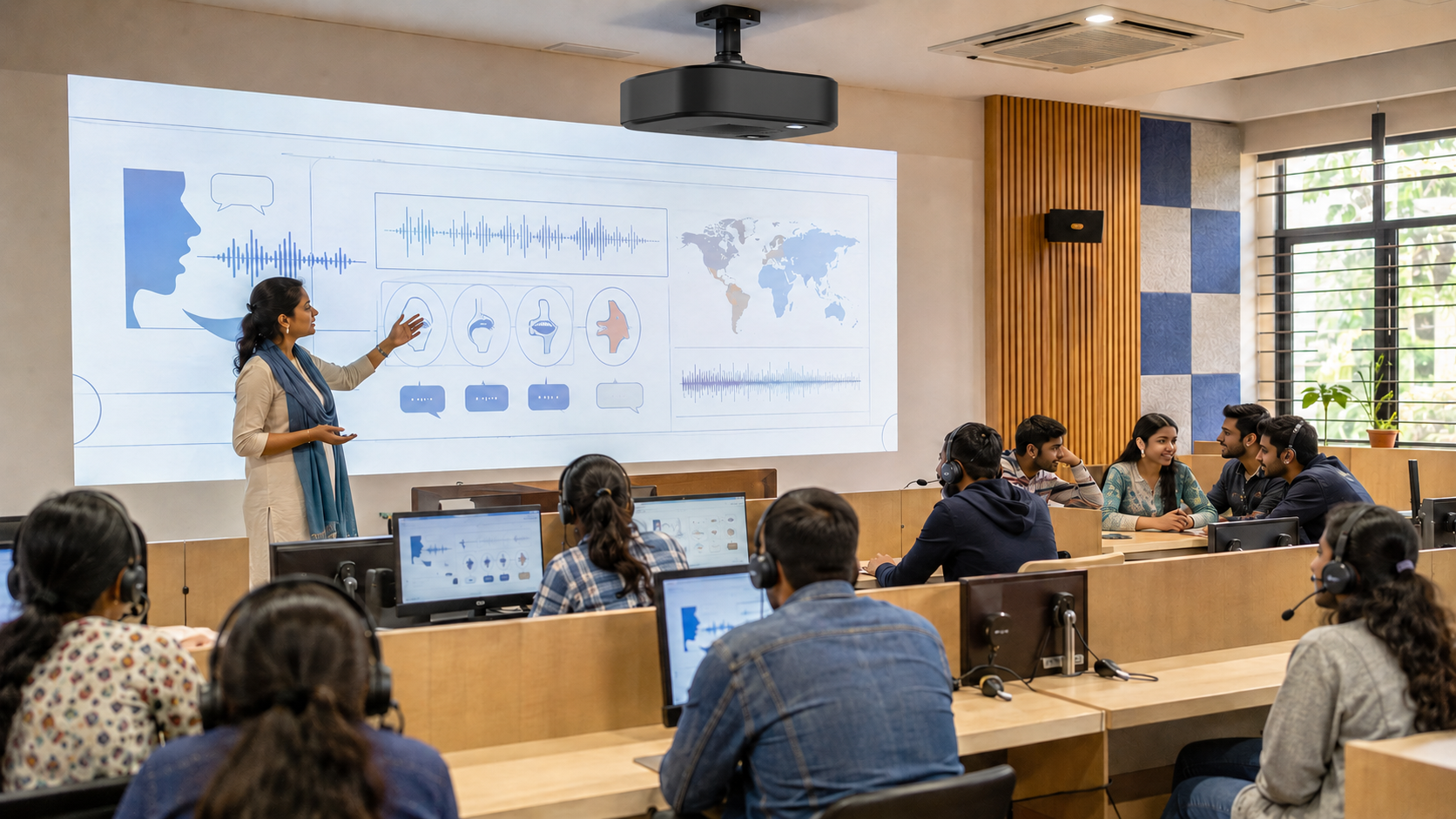
A modern training room setup must support the trainer and on-site staff. Remote learners need equal access. It should also save useful content after the session.
This is where a basic training display reaches its limit. L&D teams also need recording, secure sharing, tests, and proof of progress.
Eight Things to Check Before Buying a Whiteboard in Office Spaces
Use these points while comparing products and vendor demos.
1. Room Size and Visibility
Measure the room before requesting quotations. Note the farthest seat, ceiling height, available wall, and expected group size.
A fixed 55-inch or 65-inch interactive flat panel may suit a small meeting room. Large learning spaces need a bigger, scalable image with clear sightlines.
2. Touch and Annotation Quality
Writing should feel fast and accurate. Test if users can mark files and save notes. They should reopen them with ease.
Ask several staff members to use the whiteboard in office conditions. A polished vendor demo does not always reflect daily use.
3. Cameras, Microphones and Speakers
Hybrid training fails when remote staff cannot see demos or hear questions. Check the camera angle, microphone range, and speaker clarity from each seat.
Also test hands-on demos. A wide camera may show the trainer. It may still miss a small part or hand movement.
4. Connectivity and Device Support
Staff will bring Windows laptops, phones, and other devices. Screen sharing should not depend on a complex cable chain.
Confirm HDMI, wireless casting, Wi-Fi, Bluetooth, and network needs. Check meeting and sign-in links before signing the order.
5. Session Recording
Recording should not add another task for the trainer. Ask whether the system captures the presentation, instructor, audio, and participant interaction together.
The best whiteboard in office training space turns one workshop into a useful asset. New hires and other regions can reuse it.
6. Content Reuse and Microlearning
A two-hour recording is rarely a useful learning tool. Staff need short modules that answer one process, policy, or skill question.
A 2025 review found that microlearning can improve learning results. It works best when content is split into planned, focused units.
Look for tools that split recordings and write summaries. Each module should link to one clear learning goal.
7. Content Security and Ownership
Internal training may contain product plans, work steps, or private methods. Downloadable recordings can travel far beyond the right staff group.
Ask whether the system streams content instead of sharing files. Check access by role, user rights and controls for former staff.
8. Assessment, Analytics and Compliance
Attendance does not prove that learning took place. L&D teams need knowledge checks, skill tests, attempts, scores and course records.
CIPD’s learning evaluation guidance says reviews should link to work gaps. They should also show business impact. A good whiteboard in office solution should support that link.
The Best Whiteboard in Office Training Rooms Should Work After the Session
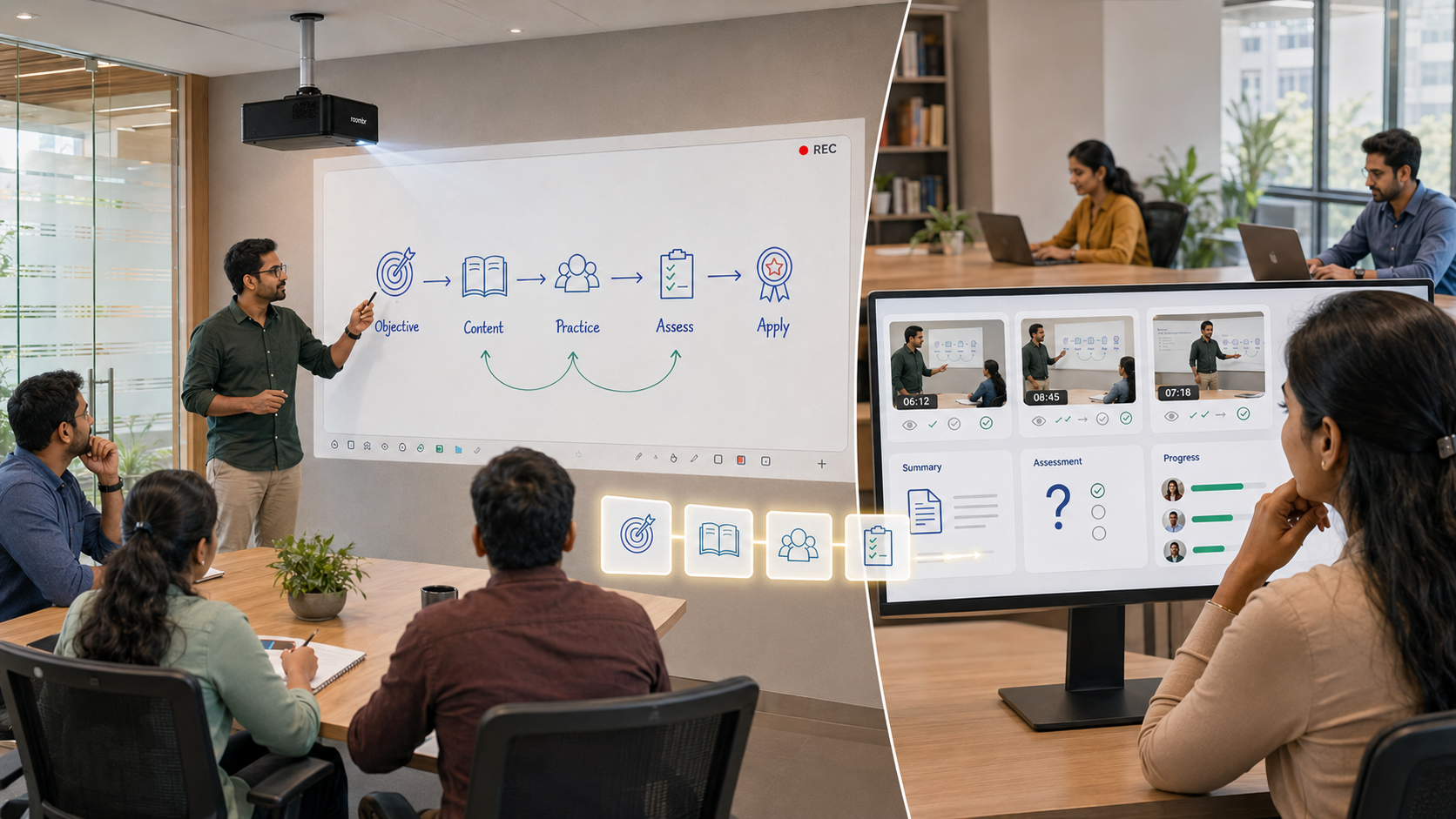
Most buying guides stop at touch accuracy, screen resolution, and video meetings. Corporate learning does not stop when employees leave the room.
Consider a company that hires 300 staff across three regions. Its product expert runs a 90-minute workshop each month.
With a basic board, the insight is lost when the notes are erased. A smart display may save notes and record the workshop. The L&D team must still edit, sort, share, and track it.
A linked workflow changes the outcome:
- The trainer delivers the workshop in person, online, or in a hybrid format.
- The system records the session automatically.
- AI chapterization divides it into short, topic-based modules.
- Summaries and knowledge checks are attached to the right content.
- Staff get access based on role, team, program, or region.
- Views, attendance, attempts, scores, and progress are captured.
- L&D leaders review progress, certification, and skill data in dashboards.
The first 90-minute session now supports new hires, refresher training, and regional teams. The firm gets more value from the same expert.
This workflow is useful for:
- Employee onboarding
- Product and sales enablement
- Standard operating procedures
- Safety and compliance programs
- Manager development
- Technical skill building
- Policy updates
- Partner and regional training
Current compliance guidance also urges teams to move beyond one-time course data. Tests, trend tracking, and clear reports show if training works.
Whiteboard in Office Price and Total Cost of Ownership
There is no single office whiteboard price for every business. Cost changes with room size, display technology, computing, audio, video, and software.
Use this formula before comparing quotations:
Total cost of ownership = board or display + computer + cameras + microphones + speakers + mounts + cabling + licences + maintenance + content work
Also calculate staff time. An L&D executive may spend six hours editing each monthly workshop. That adds up to 72 hours each year.
Ask vendors to separate these cost areas:
- Hardware and installation
- Annual software licences
- Video conferencing and recording
- Content storage
- Assessment and reporting tools
- Support and maintenance
- Faculty or trainer onboarding
- Expansion to other rooms or locations
The right investment for a whiteboard in the office should reduce scattered tools and repeated work. A low purchase price has little value if running costs stay high.
Office Whiteboard Buying Checklist
Before requesting a demo, list the following needs:
- What will the room be used for?
- How many people must see and hear clearly?
- Will remote employees join?
- Must sessions be recorded automatically?
- Who will edit and organise recordings?
- Do employees need short, self-paced modules?
- Are assessments or certificates required?
- Which attendance and completion reports are needed?
- Does the content contain confidential information?
- Which devices and business systems must connect?
- Will the solution expand across offices or regions?
- What support and warranty does the vendor offer?
This checklist makes training room configurations easier to compare. It also stops vendors from shaping the brief around their own product.
How Roombr Extends the Whiteboard in Office Beyond Meeting
Roombr Pro combines a large smart display with a computer, cameras, microphones, and speakers. It also includes key network links.
The system can turn a suitable wall into a smart surface of up to 200 inches.
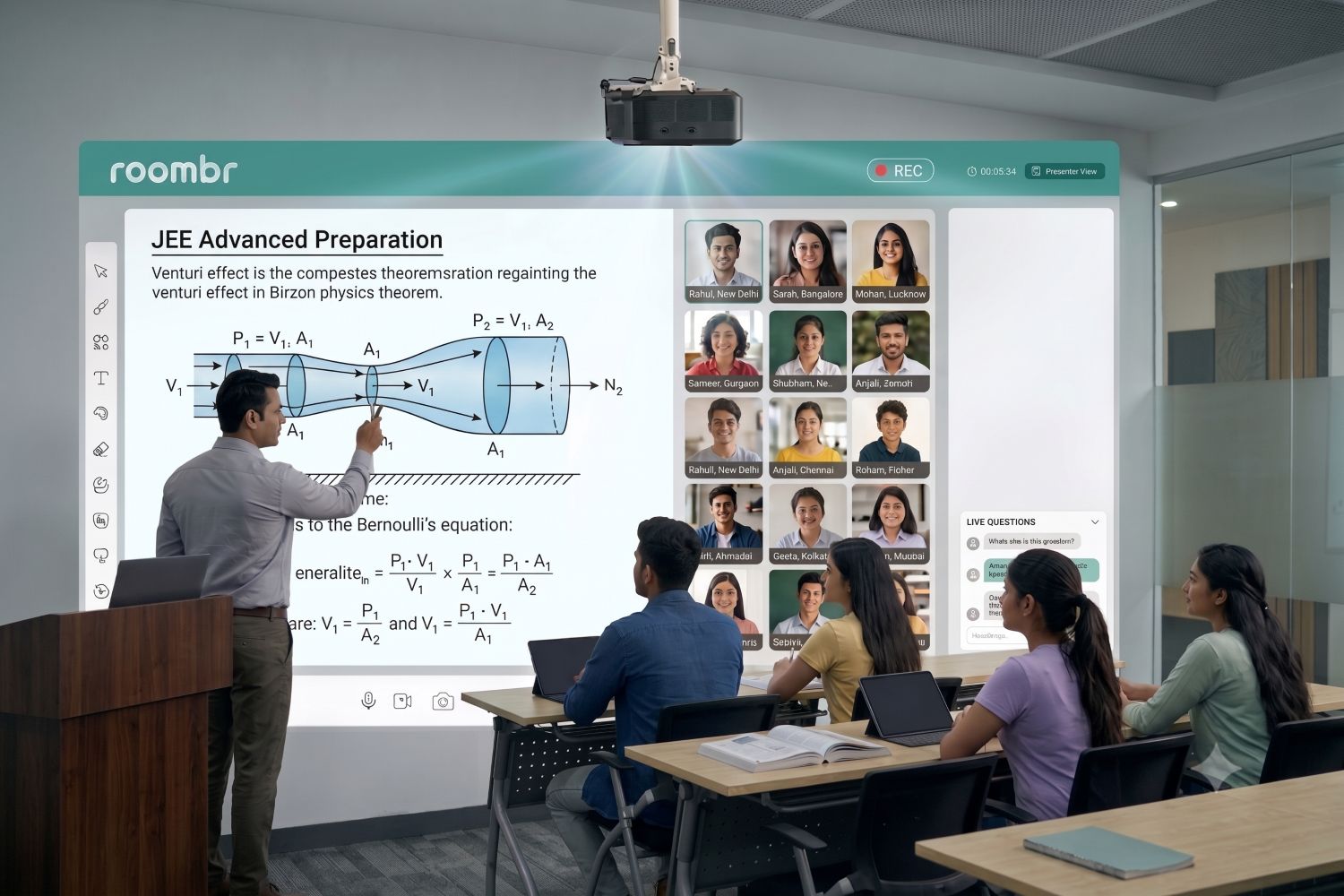
For corporate L&D, Roombr links live teaching with recording and content reuse. It also links tests and data. AI tools can split sessions, write summaries and create knowledge checks.
Training content can stream to approved staff without sharing files. Attendance, progress, attempts and scores give L&D teams proof. They can use it in leadership and compliance reports.
Explore Roombr’s interactive solution for corporate training rooms. It can help before you compare room plans.
Frequently Asked Questions
1. What is the best whiteboard for office use?
A traditional board is best for simple notes. A smart system is better for media, remote teamwork, and recording. It also helps with tests and reusable content.
2. How much does a whiteboard in office spaces cost?
Traditional boards cost far less than interactive systems. For smart systems, size, computer power, and cameras affect price. So do sound, setup, software and support.
3. What size smart board is suitable for a conference room?
Choose size using room depth, farthest viewing distance and content type. Small rooms may use fixed panels, while large training rooms need scalable displays.
4. Is a smart board the same as an interactive whiteboard?
The terms often overlap. Both support digital content and annotation. Product capabilities differ, so compare recording, conferencing, computing, software and management features.
5. Can an office whiteboard record corporate training?
Some interactive systems can record training. Check whether they capture the trainer, content and sound. They should also capture group input without extra recording gear.
6. Can an interactive whiteboard track staff training progress?
A display alone usually cannot. Progress tracking needs linked learning software. It must record attendance, views, tests, scores, and certificate status.
Turn Every Training Session Into a Measurable Asset
Choose an office whiteboard based on your business needs. Do not start with the screen. Basic boards support ideas. Smart displays improve teamwork.
An all-in-one L&D system goes further. It helps firms capture and reuse knowledge. They can protect private content and check what the trainees or staff understood.
Is your company planning an office, meeting or training-room upgrade? Share the room size, training use and staff needs with Roombr.
Book a free corporate L&D demo and see how Roombr can turn each training session into secure, reusable and trackable learning content.

Foziya Abuwala
Share
Step Into the future of
Education with Roombr